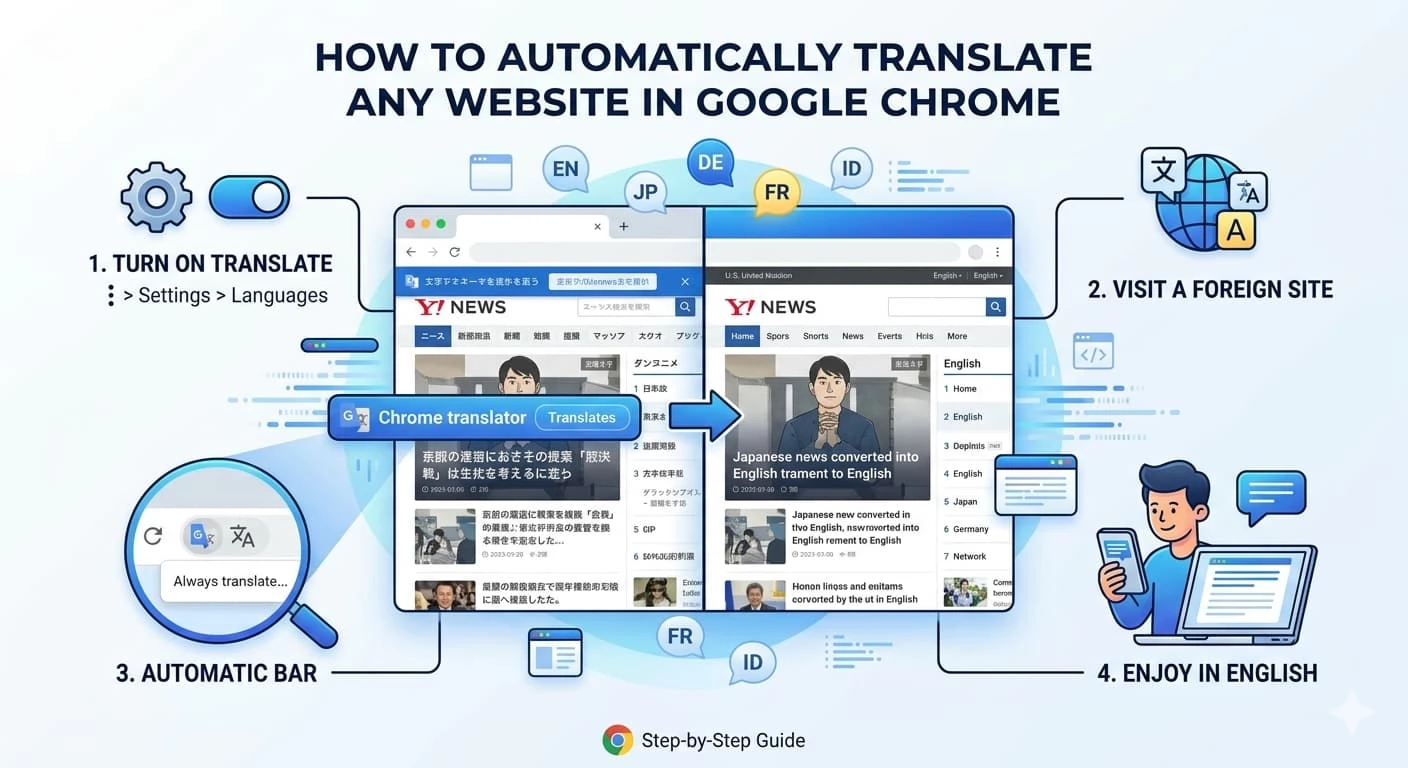
How to Automatically Translate Any Website in Google Chrome: The Ultimate Guide
In our increasingly interconnected digital world, language should never be a barrier to information. Whether you are conducting international market research, planning a vacation to a remote destination, or simply browsing global news, the ability to read content in your native tongue is invaluable.
Google Chrome, the world’s most popular browser, comes equipped with a powerful built-in integration: Google Translate. This guide will provide an exhaustive, step-by-step walkthrough on how to master this tool across all your devices, ensuring you never feel lost in translation again.
1. Why Use Google Chrome for Translation?
While there are many third-party extensions and standalone translation apps, Chrome’s native feature offers several distinct advantages:
-
Speed: Translation happens almost instantaneously as the page loads.
-
Seamless Integration: No need to copy and paste text into a separate tab.
-
Contextual Accuracy: Powered by Google’s Neural Machine Translation (NMT), it understands phrases and context better than traditional word-for-word tools.
-
Cross-Platform: Your settings can sync across your laptop, tablet, and smartphone.
2. Master Guide for Desktop (Windows, Mac, ChromeOS)
For power users, the desktop version of Chrome offers the most granular control over how and when pages are translated.
A. Initial Configuration
Before you can use the feature, you must ensure it is activated in your browser core settings.
-
Launch Google Chrome.
-
Click the Three Vertical Dots (⋮) in the top-right corner.
-
Navigate to Settings > Languages on the left-hand sidebar.
-
Under the Google Translate section, ensure the toggle for "Use Google Translate" is blue (active).
-
Preferred Languages: In this same menu, you can add languages you speak fluently. Chrome will not offer to translate pages written in these languages.
B. Manual vs. Automatic Translation
Sometimes Chrome detects the language automatically; other times, it needs a nudge.
-
The Address Bar Icon: Look for the small Google Translate logo (a blue and white 'G' icon) at the far right of your address bar. Clicking this opens the translation card.
-
The Right-Click Method: If the icon is missing, right-click any empty space on the webpage. Select "Translate to English" (or your primary language).
C. Advanced "Always Translate" Settings
If you frequently visit websites in a specific language (e.g., Japanese tech blogs or German news), you can automate the process:
-
Trigger the translation card.
-
Click the Three Vertical Dots within the small pop-up window.
-
Check the box: "Always translate pages in [Language]".
-
Now, every time you visit a site in that language, Chrome will translate it before you even start reading.
3. Master Guide for Mobile (Android & iOS)
Browsing on the go requires a different interface. Google has optimized the mobile experience to be less intrusive while remaining highly functional.
A. On Android Devices
Android offers the deepest integration since both the OS and the browser are Google products.
-
Open Chrome and tap the Three Dots (⋮) in the top right.
-
Select Settings > Languages.
-
Ensure the toggle "Offer to send pages in other languages to Google Translate" is enabled.
-
How it works: When you visit a foreign site, a bar appears at the bottom with two options (e.g., "Indonesian" and "English"). Simply tap your preferred language.
B. On iPhone and iPad (iOS)
Apple users have a slightly different UI but the same core functionality.
-
Open Chrome and tap the Three Horizontal Dots (...) at the bottom-right.
-
Go to Settings > Languages.
-
Activate Translate Pages.
-
The Bar: Chrome for iOS displays the translation bar at the top of the screen, just below the address bar.
4. Managing "Never Translate" Rules
There are times when you don't want a translation—perhaps you are learning a new language or the translation is breaking the website's layout.
-
Never Translate This Site: Use this if a specific URL looks better in its original form.
-
Never Translate This Language: Use this if you are bilingual and want to keep certain languages original.
To set these, click the Three Dots inside the translation pop-up and select the corresponding "Never Translate" option.
5. Troubleshooting Common Translation Issues
Even the best tools encounter glitches. Here is how to fix them: